
Free space: df
Open Terminal from Applications → Utilities. The one-line answer to “how much space do I have left” is:
df -h /You get one row with Size, Used, Avail and Capacity. Avail is your free space. The -h flag prints it as GB rather than a count of blocks.
Drop the slash to see every mounted volume at once, external drives and disk images included:
df -hWhy there are so many volumes
A plain df -h on a modern Mac lists a surprising number of rows. Since macOS Catalina, the startup disk is several APFS volumes sharing one pool of space:
- / is a read-only, sealed snapshot of macOS itself. Its Used figure is the operating system, about 10 to 12 GB.
- /System/Volumes/Data is everything else: your files, your apps, your Library. This is the one that grows.
- /System/Volumes/VM, Preboot, Update and xarts hold swap, boot files and update staging.
They all draw from the same container, so they all show the same Avail. That is why the Used column does not add up to the Size column: each row is one volume’s share of a pool they have in common.
Folder sizes: du
df tells you how full the disk is. du tells you what filled it. The size of one folder:
du -sh ~/LibraryEverything in your home folder, one level down, largest last:
du -sh ~/* ~/.[!.]* 2>/dev/null | sort -hThe second pattern catches dot folders like ~/.npm, ~/.cache and ~/.docker, which a plain * skips and which are often large on a developer’s Mac. To go three levels deep and keep the top thirty:
du -h -d 3 ~ 2>/dev/null | sort -h | tail -30The largest files on the drive
Every file over a gigabyte in your home folder, ranked:
find ~ -type f -size +1G -exec du -h {} + 2>/dev/null | sort -hChange +1G to +500M to cast a wider net. To search the whole Data volume, point it at /System/Volumes/Data with sudo, and add -xdev so it does not wander onto external drives:
sudo find /System/Volumes/Data -xdev -type f -size +1G -exec du -h {} + 2>/dev/null | sort -hExpect disk images, virtual machine disks, Docker’s Docker.raw, video, iOS backups and simulator runtimes near the bottom of that list.
The APFS container: diskutil
For the view from underneath the volumes:
diskutil info / | grep -i spaceThis prints the container’s total and free space. For every volume in the container and what each one is using:
diskutil apfs listAnd to see whether local Time Machine snapshots are holding space, which is the most common reason free space will not come back after you delete things:
tmutil listlocalsnapshots /The System Data guide covers what those snapshots are and how to thin them.
Why Terminal disagrees with Finder
Finder will often say you have more free space than df does. Two reasons:
- Purgeable space. Finder counts space macOS could free on demand, such as iCloud files it can re-download and old snapshots, as available.
dfcounts only what is free right now. - Units. Finder uses powers of 1,000,
df -huses powers of 1,024. Usedf -Hwhen you compare.
du and Finder’s Get Info can also disagree on a folder, because du counts blocks actually allocated and APFS compresses files and lets copies share blocks. The folder size guide explains the two sizes.
When a list of numbers is not enough
These commands are precise and free, and they are also a series of guesses. You run du on a folder, spot the heavy one, run it again inside that, and repeat until you find the file. On a Mac with millions of files each pass takes a while.
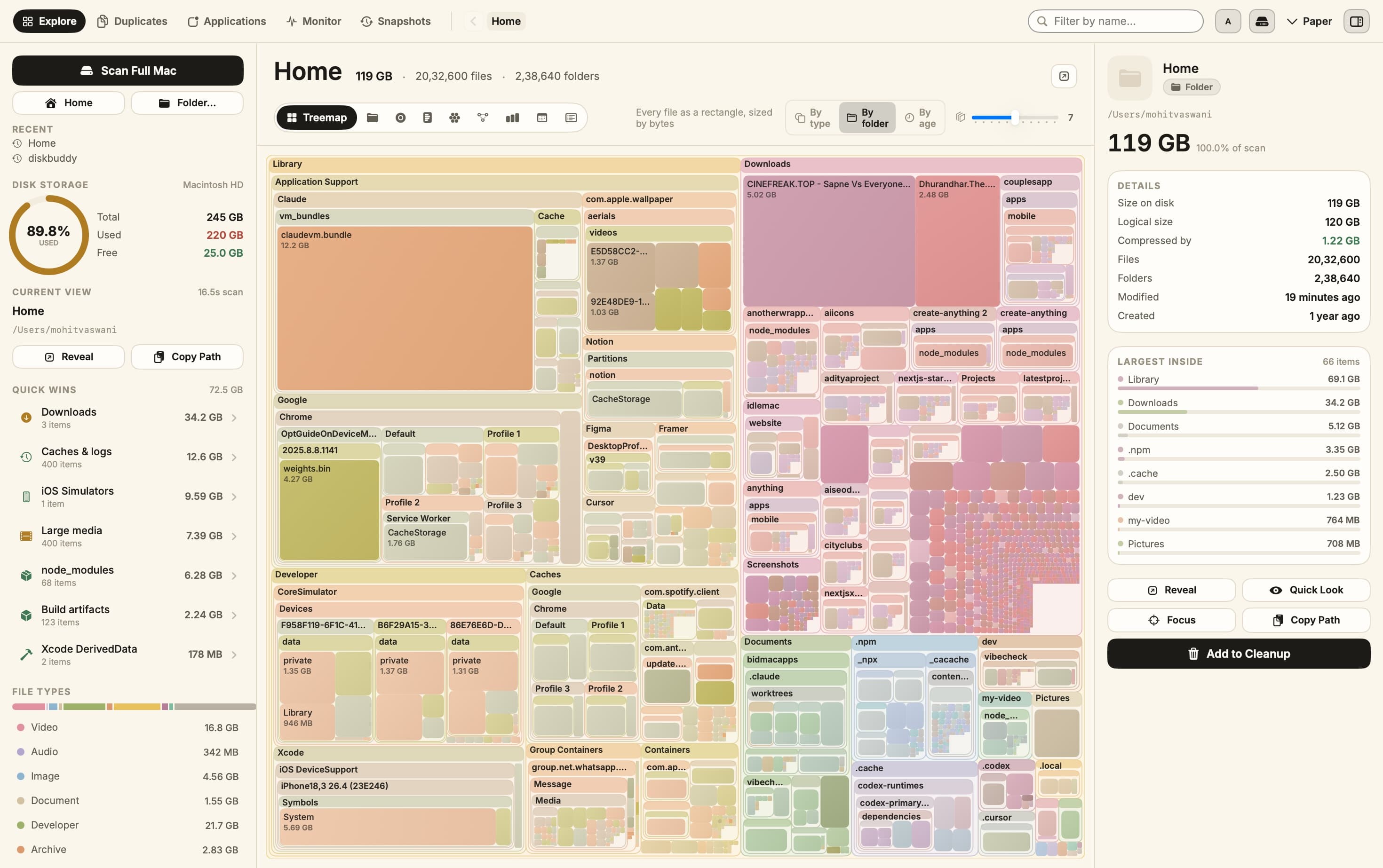
DiskBuddy does the whole walk once, in seconds, and draws it. The big rectangles are the answer, hidden folders and dot folders included, and anything you find can be revealed in Finder or staged for cleanup without typing a path.
Every du you would have run, in one scan
DiskBuddy maps the whole drive in seconds and shows every folder and file at its real size, so you stop drilling down one command at a time.
One payment, no subscription. Your key and the download arrive the moment the payment clears.
Keep reading
- How to check storage on a MacFour built-in ways, and what each one hides
- What is taking up space on your MacTen usual suspects, and where each one lives
- How to check folder size on a MacFinder hides them until you ask
- How to uninstall apps on a MacWhy the Trash leaves most of the app behind
- How to uninstall Xcode and its dataThe app is the small part
- What a Mac disk space analyzer doesSeeing a drive as a map instead of a list
- Sunburst storage charts, and how to read oneRings are depth, width is space
- A Disk Xray alternative for your MacAn honest comparison, gaps included
- What System Data is, and how to clear itThe category macOS will not open
- Finding what fills your drive on WindowsWhere Storage settings stops short