 DiskBuddy
The usual way, and what it misses
On a Mac an application is a single bundle, so removing one really is as simple as it looks.
- 1Quit the app, and check the menu bar in case it is still running.
- 2Open Applications in Finder.
- 3Drag the app to the Trash, or select it and press Command-Delete.
- 4Empty the Trash.
That reclaims the bundle, which is usually the largest single piece. What it does not touch is everything the app wrote while you were using it. Applications keep their working files outside themselves, in your Library folder, so that deleting and reinstalling an app does not lose your settings. The same design means an uninstall leaves them sitting there indefinitely.
Launchpad, for App Store apps
Launchpad has the delete gesture people remember from iOS, but it only works on apps installed from the Mac App Store.
- 1Open Launchpad from the Dock, or pinch with four fingers on the trackpad.
- 2Click and hold any icon until they all start to wobble, or hold the Option key.
- 3Click the × on the app you want gone and confirm.
If an app has no ×, it did not come from the App Store, and the Applications folder is the way to remove it. Deleting through Launchpad leaves the same support files behind as dragging to the Trash does.
When the app ships its own uninstaller
Some apps install more than a bundle, and those usually provide a proper uninstaller. Use it when it exists, because it knows what it put where.
- Adobe apps: remove them through the Creative Cloud desktop app rather than by hand.
- Microsoft Office: use the Microsoft support tool, or remove the apps and their container folders together.
- Antivirus and VPN software: nearly always ships an uninstaller, and nearly always installs a system extension that has to be removed properly.
- Anything installed from a .pkg rather than dragged from a disk image: check inside the original disk image or the app's own folder for an uninstaller.
Where the leftovers actually live
Your Library folder is hidden by default. To open it, click the Finder desktop, open the Go menu, hold Option, and choose Library. Or press Command-Shift-G and enter:
~/LibrarySearch each of these for the app’s name, and for its bundle identifier, which looks like com.maker.appname:
~/Library/Application Support/— the app’s own data. Usually the biggest of them.~/Library/Caches/— downloaded and generated files. Often gigabytes on browsers and chat apps.~/Library/Preferences/— the settings.plistfile.~/Library/Containers/and~/Library/Group Containers/— everything a sandboxed app owns, including its documents.~/Library/Logs/— diagnostic logs.~/Library/Saved Application State/— the windows it had open.~/Library/HTTPStorages/and~/Library/WebKit/— cookies and web data for apps with a browser inside them./Library/Application Support/— the top-level Library, for anything installed for every user.
osascript -e 'id of app "AppName"'Background items that keep running
An app can leave something behind that still starts up every time you log in, long after the app itself is gone. Two places to check.
- 1Open System Settings → General → Login Items, and remove anything belonging to the app from both lists.
- 2Look in
~/Library/LaunchAgents/,/Library/LaunchAgents/and/Library/LaunchDaemons/for.plistfiles named after the app, and remove those too.
Apps that installed a system or network extension will also appear under General → Login Items & Extensions, and those have to be turned off there before the files will go.
Removing the whole footprint at once
Doing all of that by hand, per app, is the reason most Macs are carrying years of leftovers from software nobody has opened since. DiskBuddy’s Applications tab lists every app with its true size, the bundle plus everything it scattered, and removes the whole set together.
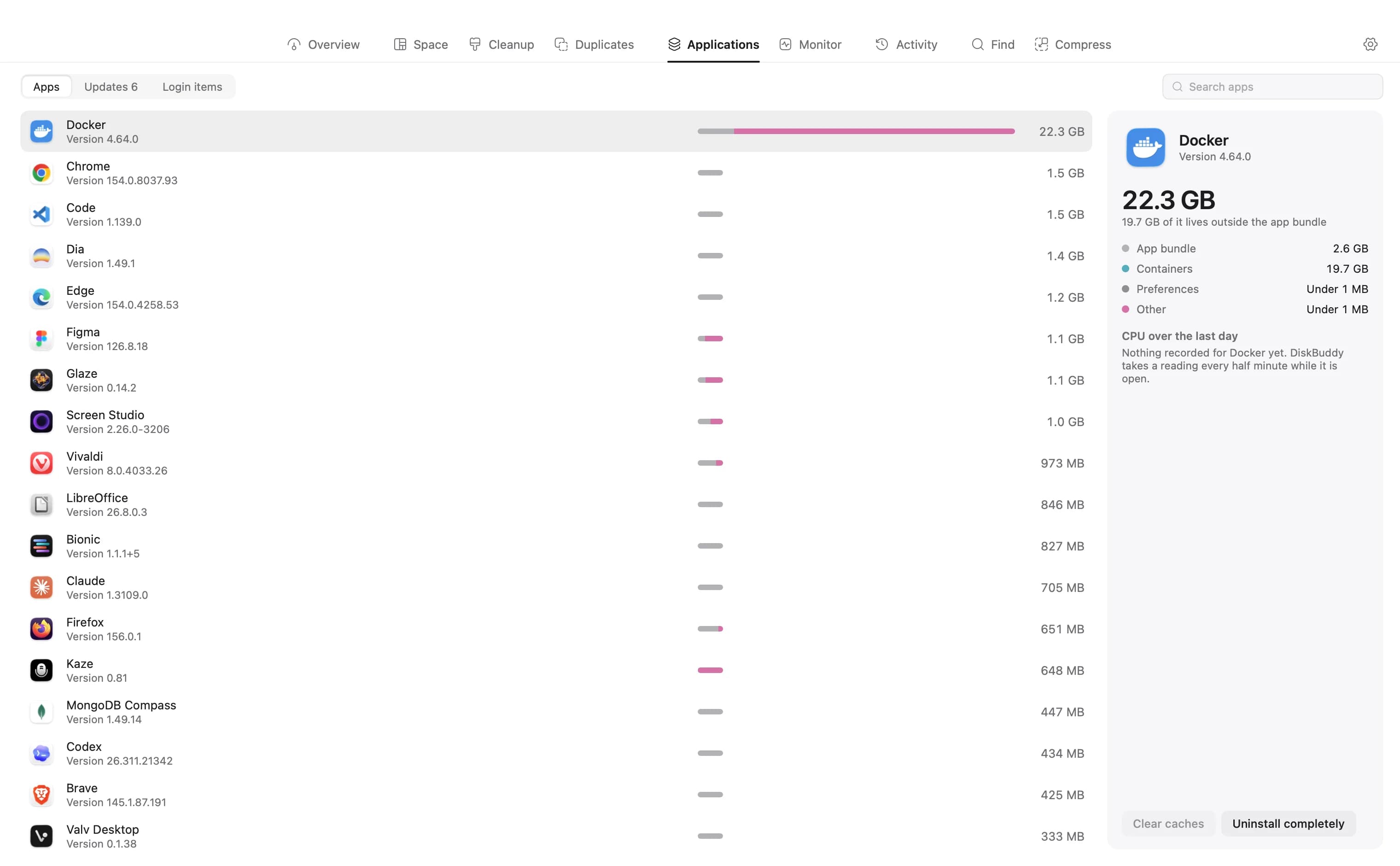
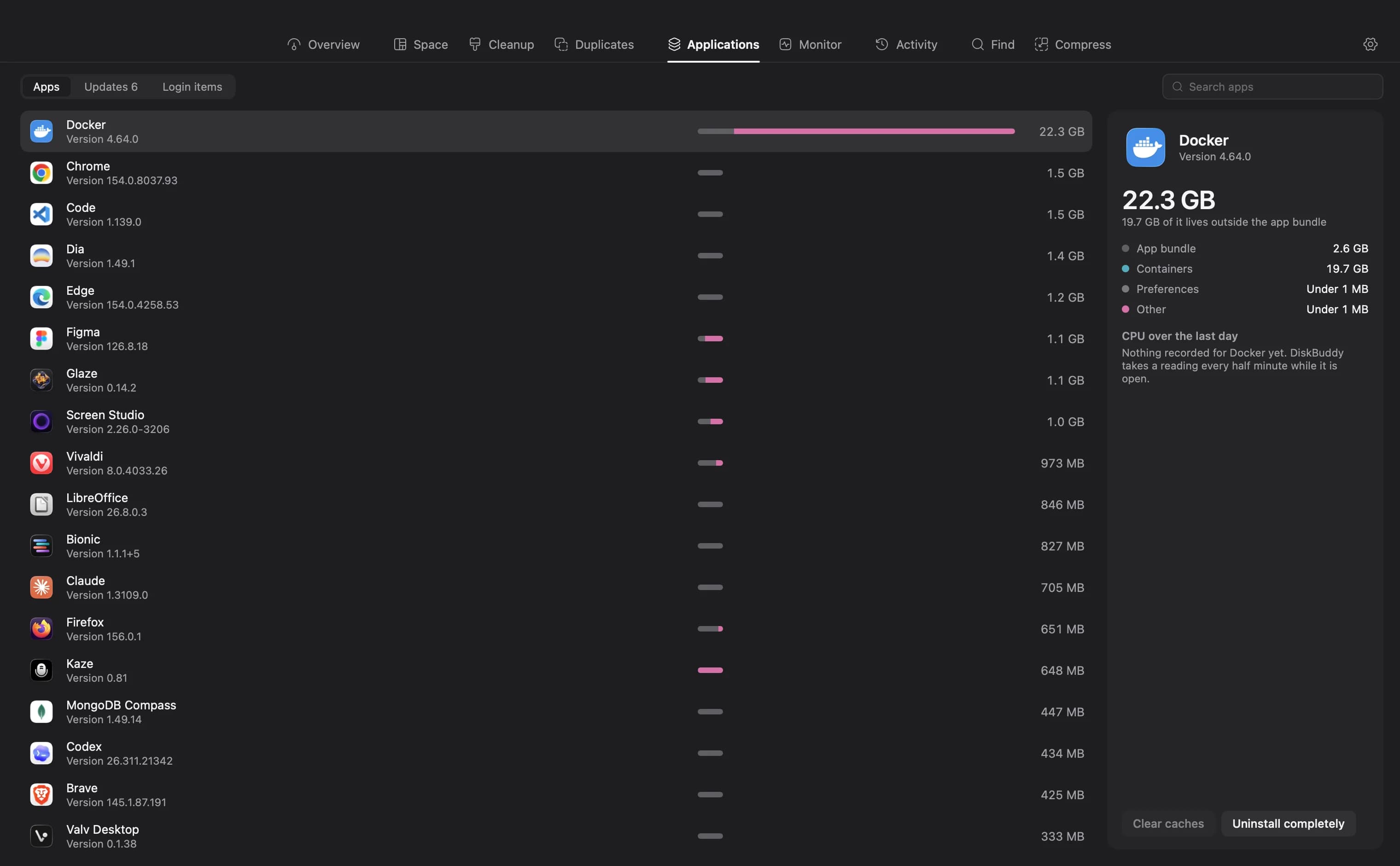
Because it matches on the bundle identifier as well as the name, it finds the folders a Finder search does not. Nothing is removed behind your back: the whole set is staged on a cleanup list you review, and system-critical paths are excluded from staging in the first place.
See what your apps really weigh
DiskBuddy lists every application with its full footprint and takes the leftovers with it, so uninstalling actually gets the space back.
$9 once, no subscription. One key for Mac and Windows, and the download arrives the moment the payment clears.