 DiskBuddy
What a sunburst storage chart is
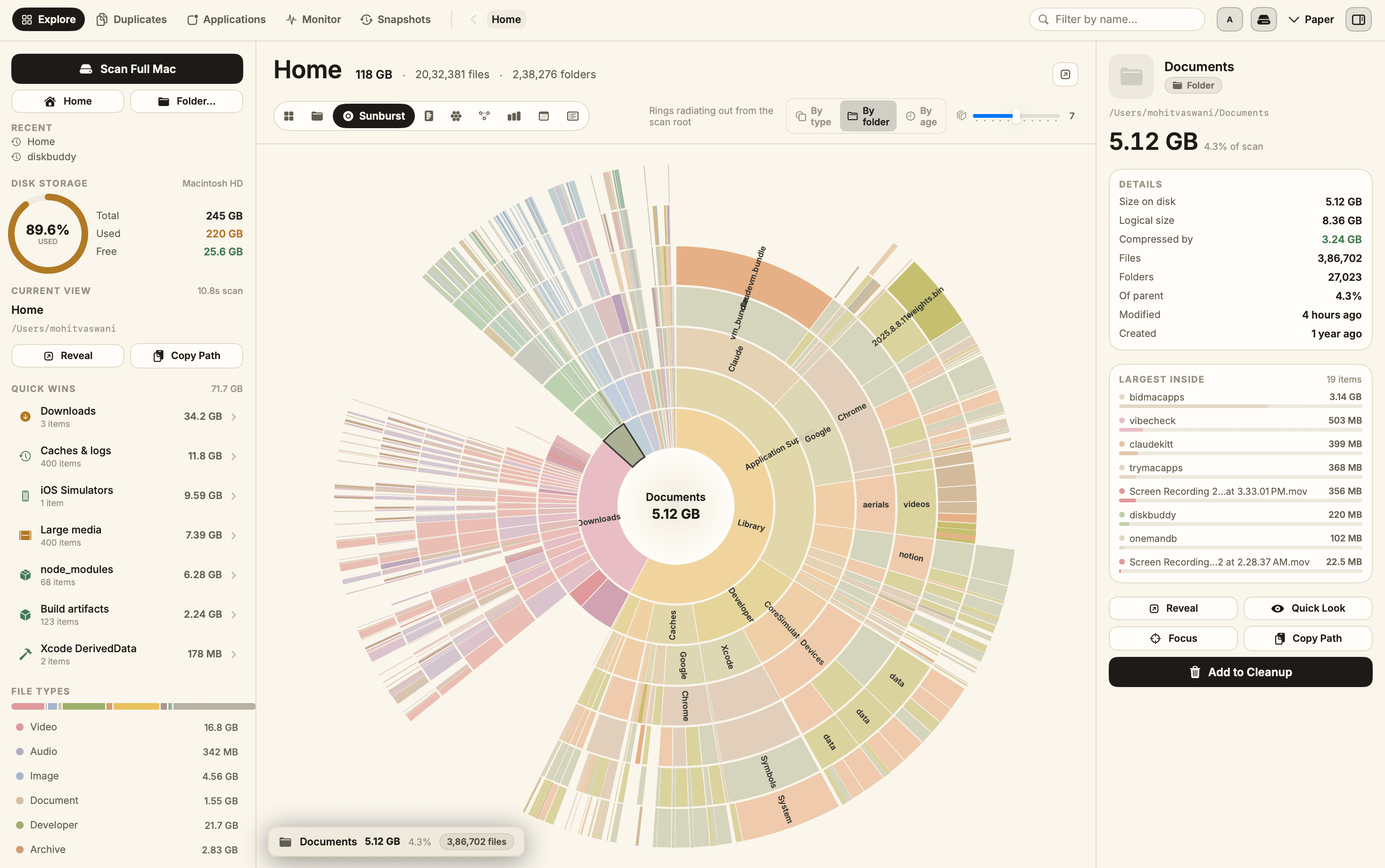
A sunburst draws a folder tree as concentric rings. The centre disc is whatever you pointed the scan at. The first ring around it is everything one level inside. The next ring out is one level deeper again, and so on until the files themselves.
The one number it encodes is angle. A slice that sweeps a quarter of the circle is using a quarter of the space in the scan. Because a child slice sits directly outside its parent and can never be wider than it, you can follow a heavy wedge outward and watch it split into the things that made it heavy.
How to read one
- 1Start at the middle. That disc is the whole scan, and every ring around it adds up to the same total.
- 2Find the widest wedge in the first ring. That is the top-level folder using the most space. On a home folder it is very often Library.
- 3Follow it outward. Read along that wedge, ring by ring, and watch where it stops being one wide slice and breaks into many narrow ones. That point is where the space actually spreads out.
- 4Look for a wedge that stays wide. A slice that keeps its width for several rings is a deep chain of folders holding one heavy thing at the end. That is usually the find.
- 5Ignore the thin stuff. Hundreds of hairline slices are hundreds of small files. They are noise, and deleting them will not move the number.
Getting one on a Mac
macOS does not draw one. The Storage screen under System Settings, then General, gives you a flat bar split into categories such as Applications, Documents and System Data, and none of those segments opens up. A sunburst needs a disk space analyzer.
DiskBuddy scans a 118 GB home folder of roughly two million files in about ten seconds and renders it as a sunburst straight away, along with seven other ways to read the same scan. Clicking a slice re-roots the chart on it, so you can dive into a wedge and keep going.
Sunburst or treemap?
They are not rivals so much as two lenses, and it is worth knowing which to reach for.
- Sunburst wins on structure. Depth is explicit, so you can see at a glance whether your space is spread shallowly across many folders or buried ten levels down in one.
- Treemap wins on individual files. Every item gets a rectangle of real area rather than a thin arc, so one huge file is unmissable. Arcs get cramped as they go outward.
- Sunburst reads faster at the top. Four or five wide wedges in the first ring is a clearer summary than a rectangle packed with detail.
- Treemap uses the screen better. A circle wastes its corners. On a wide display a treemap simply shows more.
The practical answer is to start with the sunburst to understand the shape of the drive, then switch to the treemap once you know which branch you are hunting in.
What the rings usually give away
The same shapes turn up on nearly every Mac that has been in use for a while:
- One wedge swallowing the first ring. Almost always Library, which is where caches, application support and container folders live.
- A long narrow chain. Deeply nested build output. Xcode DerivedData and node_modules both look like this.
- A ring of near-identical slices. Repeated folders of a similar size, which usually means simulator runtimes, virtual machines or versioned backups.
- A wide wedge that never subdivides. A single very large file, such as a disk image or a recording.
Acting on what you found
Finding the weight is the easy half. Removing it is where people get nervous, and reasonably so, because a sunburst will happily point at a system folder you should not touch.
- Caches and logs are safe; apps rebuild what they need.
- Xcode DerivedData, simulators and archives all regenerate.
- node_modules and build output from finished projects can go.
- Leave anything inside a system folder you did not put there.
See your drive as rings in ten seconds
DiskBuddy scans once and draws the result eight ways, sunburst included. Click any slice to re-root the chart and keep digging.
$9 once, no subscription. One key for Mac and Windows, and the download arrives the moment the payment clears.