 DiskBuddy
What Windows tells you on its own
Windows 10 and 11 both ship with a storage breakdown, and for a first look it is perfectly good.
- 1Open Settings, then System, then Storage.
- 2Wait for the categories to finish calculating, then select one to see what it contains.
- 3For other drives, choose Advanced storage settings, then Storage used on other drives.
File Explorer gives you the blunt version: open This PC and each drive shows a bar with free space beneath it. For an exact figure per folder, PowerShell will add one up:
Get-ChildItem -Path C:\Users -Recurse -File -ErrorAction SilentlyContinue |
Measure-Object -Property Length -SumWhere Storage settings stops
The categories answer what kind of thing is using your drive. They do not answer which one. Being told that Apps are using 90 GB is a fact you can do nothing with, because the next question is always which app, and the screen has no answer.
The gap widens with anything Windows manages on your behalf. Update leftovers in the component store, restore points, shadow copies, the hibernation file and the page file are all real space on a real drive, and none of them are files you would ever come across by browsing.
What a disk space analyzer adds
An analyzer walks the whole drive once and then draws it, sized by bytes. A folder using a quarter of your drive takes up a quarter of the picture, so finding the problem is looking rather than hunting.
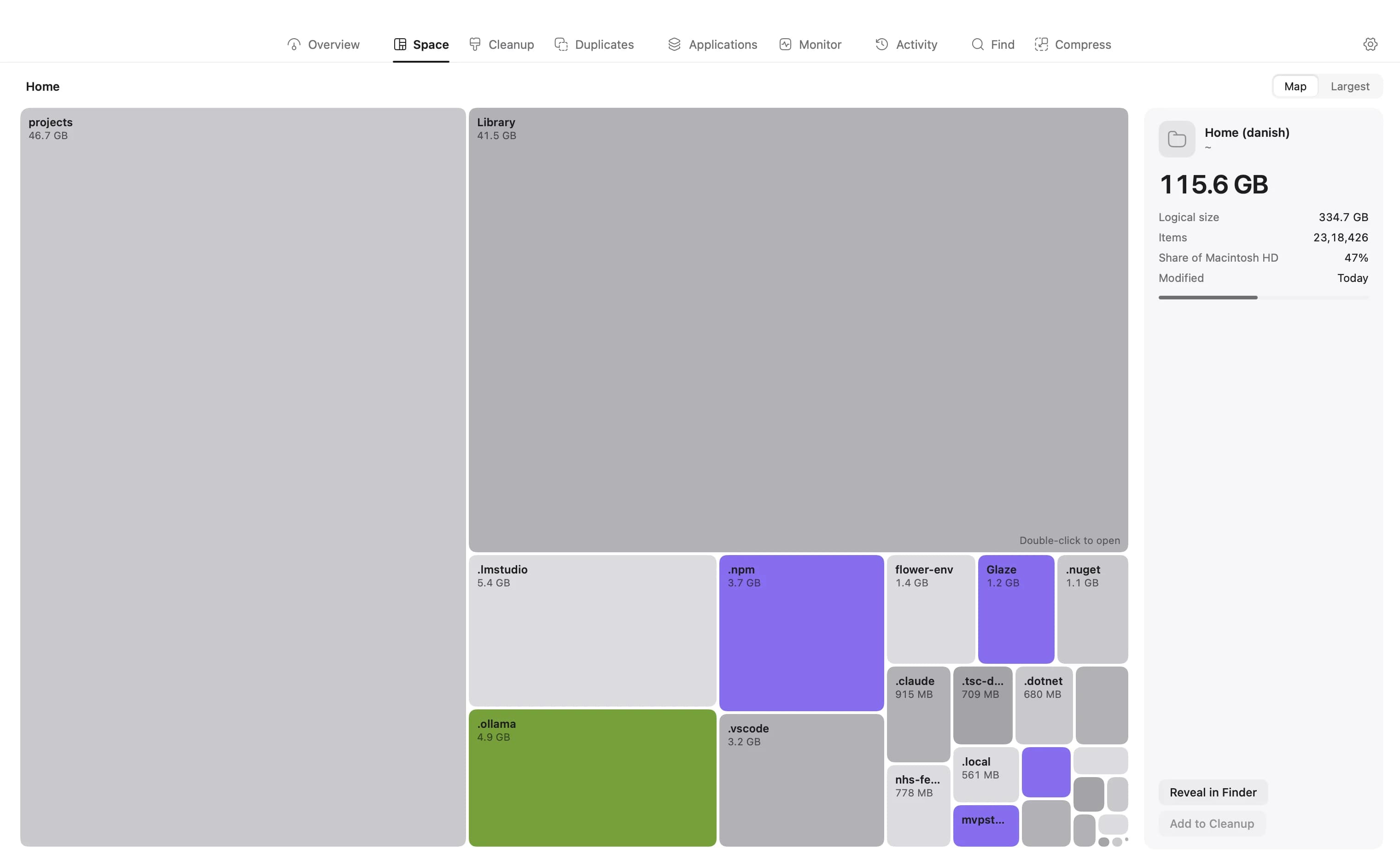
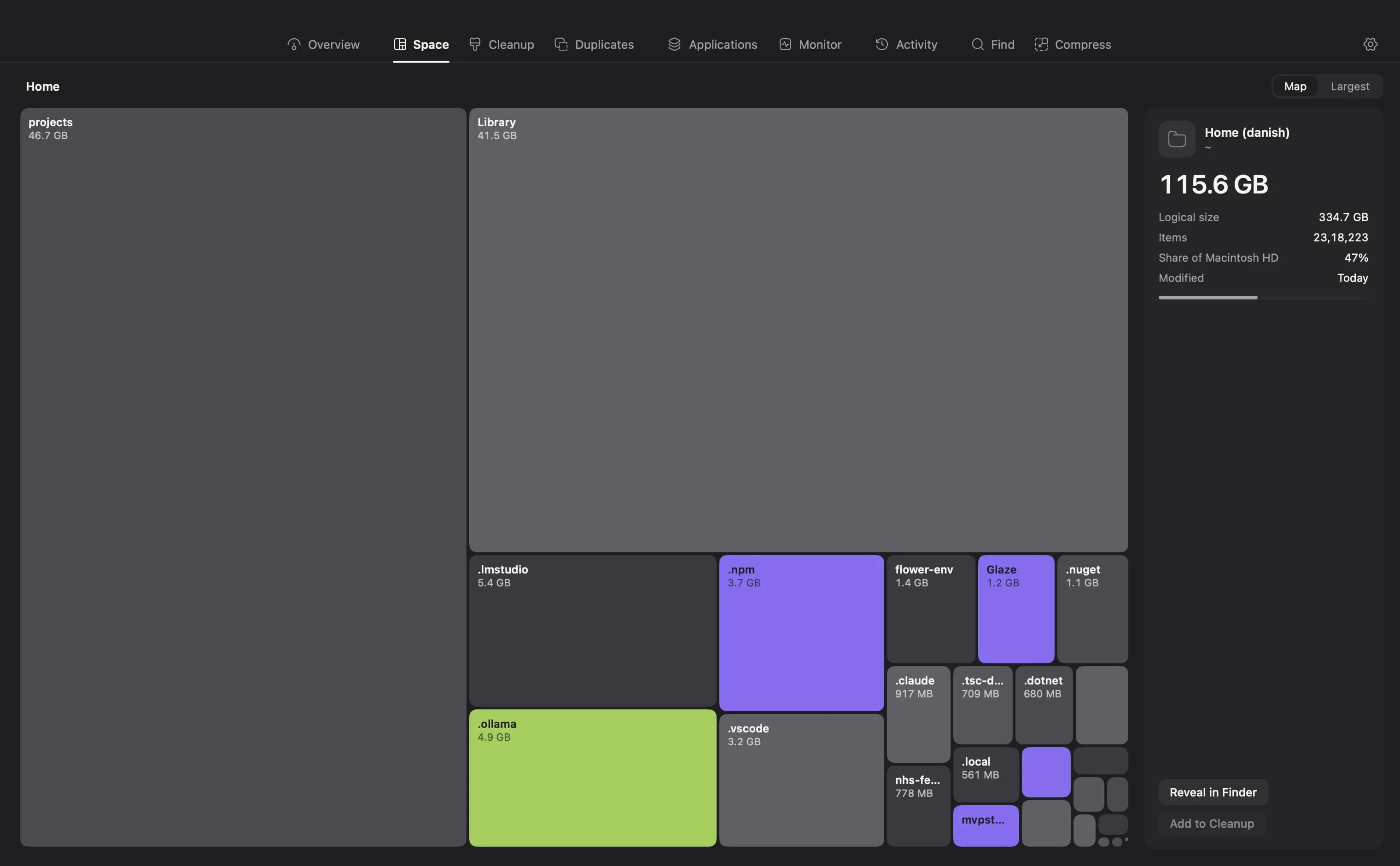
DiskBuddy runs on Windows 10 and 11, 64-bit, and gives you eight readings of the same scan: a folder grid, a sunburst, a flame graph, nested bubbles, a mind map, a ranked list of the largest items, an age map and a treemap. One scan, and switching between them is instant.
What is usually taking the space
On a Windows machine that has been in use a while, the same handful of things come up again and again:
- The Windows component store, at C:\\Windows\\WinSxS. It holds update history and cannot simply be deleted, though Disk Cleanup can trim it.
- System Restore points and shadow copies, which quietly reserve a percentage of the drive.
- Hibernation and page files, each of which can be as large as your installed memory.
- Downloads and temporary files, the easiest win and usually the first place to look.
- Game installations, which are now routinely 100 GB each and are easy to forget.
- Developer folders: node_modules, build output, container images and virtual machine disks.
Clearing it without breaking anything
Windows has a built-in tool for the system-managed parts, and it is the right one to reach for first. Open Settings, then System, then Storage, then Temporary files, and pick from the list. Storage Sense on the same screen will keep doing it on a schedule.
- Temporary files, delivery optimisation files and the recycle bin are always safe.
- Previous Windows installations are safe once you are sure you will not roll back, and they are often 20 GB or more.
- Downloads is safe only if you have checked it, because Windows counts everything in there.
- Leave the component store, the page file and anything in Windows you did not put there to the built-in tools.
See your drive instead of guessing at it
DiskBuddy scans in seconds and draws every byte eight ways, on Windows and on macOS. One payment, one key, both platforms.
$9 once, no subscription. One key for Mac and Windows, and the download arrives the moment the payment clears.