
Before you remove it: git and Homebrew
git, make, clang and Homebrew all use Apple’s developer tools. If Xcode is what provides them, they stop working when it goes. Check which one you are using:
xcode-select -pIf that prints a path inside /Applications/Xcode.app, install the standalone Command Line Tools first. They are a few hundred megabytes rather than many gigabytes, and they are all that git and Homebrew need:
xcode-select --installRemoving the app
- 1Quit Xcode, and the Simulator app if it is open.
- 2Open Applications and drag Xcode to the Trash. If you installed it from the App Store, you can also hold an app icon in Launchpad and click the delete button.
- 3Point the developer tools away from it:
sudo xcode-select --resetThat is the app gone. On most Macs it is less than half of what Xcode was using.
What Xcode leaves behind
All of this stays after the app is in the Trash. In Finder, press Command-Shift-G and paste a path to go straight there.
~/Library/Developer/Xcode/DerivedData— build output and indexes for every project you have opened. Often 10 GB or more.~/Library/Developer/Xcode/iOS DeviceSupport— debug symbols copied from every iPhone you have connected, a few gigabytes per iOS version. watchOS and tvOS have their own folders beside it.~/Library/Developer/Xcode/Archives— every build you archived for release. Keep any you might need to symbolicate a crash report from.~/Library/Developer/CoreSimulator— the simulated devices and all their app data.~/Library/Caches/com.apple.dt.Xcode— Xcode’s own cache.~/Library/Developer/Xcode/UserData— your key bindings, themes and snippets. Back this up if you might return.
To remove Xcode completely, delete the whole Xcode folder, the simulator folder and the cache in one go:
rm -rf ~/Library/Developer/Xcode ~/Library/Developer/CoreSimulator ~/Library/Caches/com.apple.dt.XcodeCheck the size first if you are curious: du -sh ~/Library/Developer.
Simulator runtimes
Since Xcode 15, each iOS, watchOS, tvOS and visionOS runtime is downloaded separately and stored as a disk image outside your home folder, at 7 GB or more apiece. Deleting the app does not remove them.
The easy way is inside Xcode: Settings → Platforms (called Components in Xcode 16), select a runtime and press the minus button. From Terminal, list them and delete each by its identifier:
xcrun simctl runtime list
xcrun simctl runtime delete <identifier>
To clear out simulators for runtimes you no longer have, while keeping the rest:
xcrun simctl delete unavailableKeeping Xcode, but taking the space back
If you still build apps, you do not need to uninstall anything. The leftovers above are the bulk of Xcode’s footprint, and most of them are safe to clear on a working Mac:
- DerivedData is always safe. The next build takes longer, then it is back to normal.
- iOS DeviceSupport for iOS versions none of your devices still run is safe. Xcode copies the symbols again when you next connect a device.
- Old simulator runtimes for iOS versions you no longer target are safe.
- Archives are safe only for builds you will never need to debug a crash from.
Xcode is not the only developer tool that hoards. The guide to what is taking up space on a Mac covers Docker, node_modules and local AI models too.
Doing it in one pass
Hunting through six folders by hand works once. DiskBuddy finds all of it in a single scan.
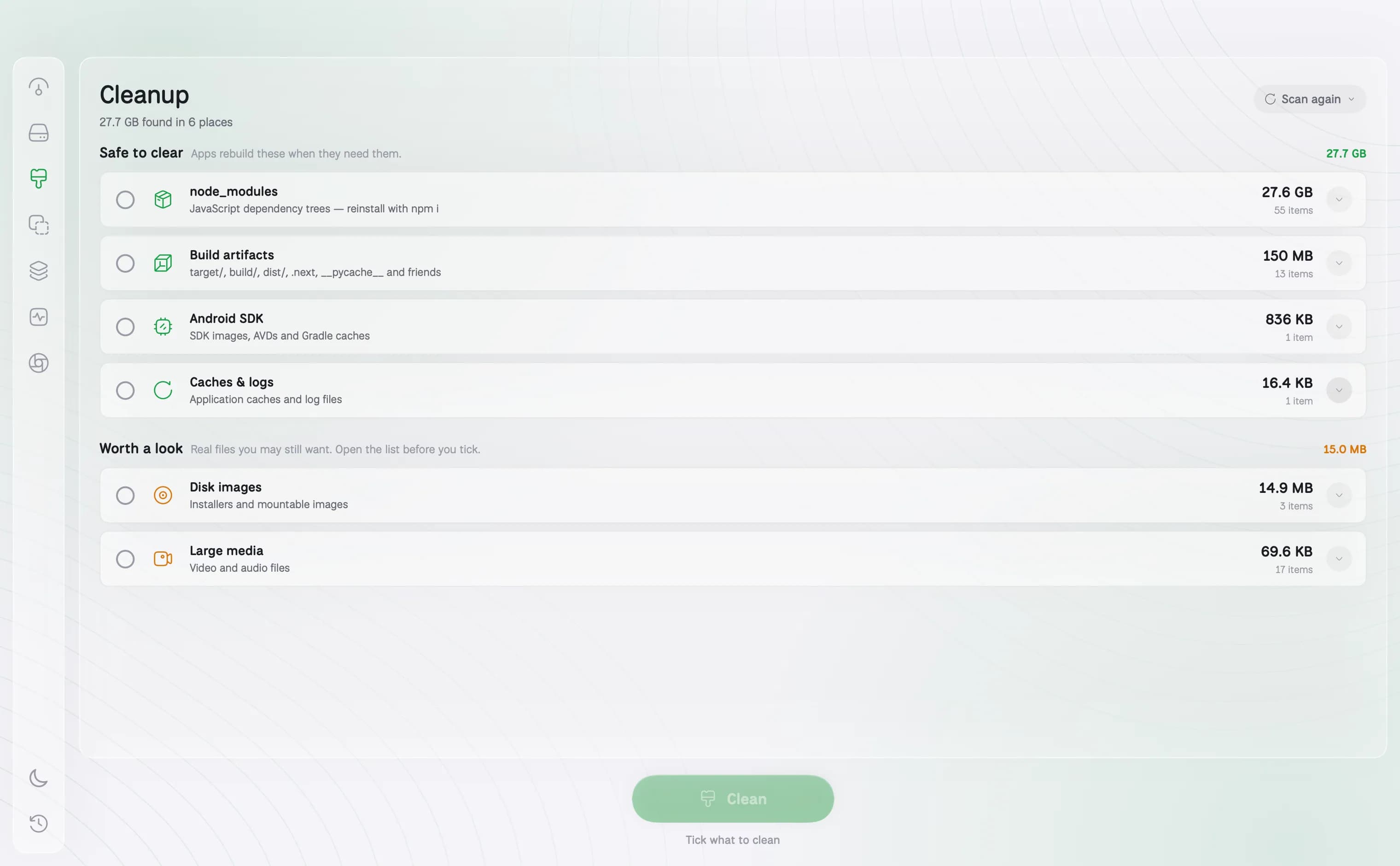
Its Cleanup room groups build output, caches, dependency trees and simulators with their sizes, split between what is safe to clear and what is worth a look. The Applications room removes an app together with the caches, preferences and support files it left around your Library, which is what uninstalling any Mac app properly takes. Everything goes to the Trash, and Undo puts it back.
See what Xcode is really using
DiskBuddy scans your Mac in seconds and totals every simulator, cache and build folder, so you can clear the lot without touching a path.
One payment, no subscription. Your key and the download arrive the moment the payment clears.
Keep reading
- How to check storage on a MacFour built-in ways, and what each one hides
- What is taking up space on your MacTen usual suspects, and where each one lives
- How to check folder size on a MacFinder hides them until you ask
- How to check disk space in Terminaldf, du and diskutil, explained
- How to uninstall apps on a MacWhy the Trash leaves most of the app behind
- What a Mac disk space analyzer doesSeeing a drive as a map instead of a list
- Sunburst storage charts, and how to read oneRings are depth, width is space
- A Disk Xray alternative for your MacAn honest comparison, gaps included
- What System Data is, and how to clear itThe category macOS will not open
- Finding what fills your drive on WindowsWhere Storage settings stops short