 DiskBuddy
What System Data actually is
System Data is not a folder. It is a label on the Storage bar, and it means everything macOS could not sort into one of the other categories. Applications, Documents, Photos, Mail and macOS all have clear definitions. System Data is the remainder.
That is why there is no way to open it, no drill-down and no list. Apple shows you a figure and no way to act on it, which is why a search for what it contains is one of the most common questions people have about their own machine. On older versions of macOS the same bucket was called Other.
Seeing how big yours is
- 1Open the Apple menu and choose System Settings.
- 2Go to General, then Storage, and let the bar finish calculating.
- 3Hover the grey segment near the right-hand end. That is System Data, and the tooltip gives you its size.
What is inside it
The mix differs by machine, but on almost every Mac it is drawn from the same handful of places:
- Local Time Machine snapshots. Copies macOS keeps on your own drive between backups. Usually the single biggest contributor.
- Application and system caches. Everything in the Caches folders. They grow and are almost never trimmed on their own.
- iOS and iPadOS device backups. Several gigabytes each, kept indefinitely once made.
- Developer files. Xcode derived data, simulator runtimes and device support. Tens of gigabytes on a Mac used for development.
- Virtual machines and containers. Docker images, Parallels or UTM disks, and downloaded language models.
- Logs, crash reports and container folders belonging to sandboxed apps.
Local snapshots, the usual culprit
If System Data is enormous and you cannot account for it, look here first. macOS takes hourly snapshots of your drive and keeps them locally, which is genuinely useful right up until they are holding tens of gigabytes.
List what is currently held:
tmutil listlocalsnapshots /Remove snapshots until a given amount of space is reclaimed:
sudo tmutil thinlocalsnapshots / 50000000000 4What is safe to delete
In rough order of how much you get back for how little you risk:
- Old local snapshots, with the command above. They regenerate as needed.
- Caches and logs. Apps rebuild whatever they still need. Expect the first launch afterwards to be slower.
- Xcode derived data, simulators and archives. All regenerate, and this is usually the largest single win on a developer’s machine.
- Old iOS device backups you have not restored from in years.
- Docker images and virtual machine disks for projects you have finished with.
What to leave alone
System Data also contains things your Mac needs, and the Storage bar gives you no way to tell them apart. The rule that keeps you out of trouble is simple: if you did not put it there, and it lives in a system folder, leave it.
- Anything inside the System folder, which macOS keeps on a sealed, read-only volume anyway.
- Application support files for apps you still use, which often hold licences and settings.
- Mail's local store, unless you are certain your mail is on the server.
- Anything you cannot identify. The space is rarely worth the afternoon.
Actually looking inside it
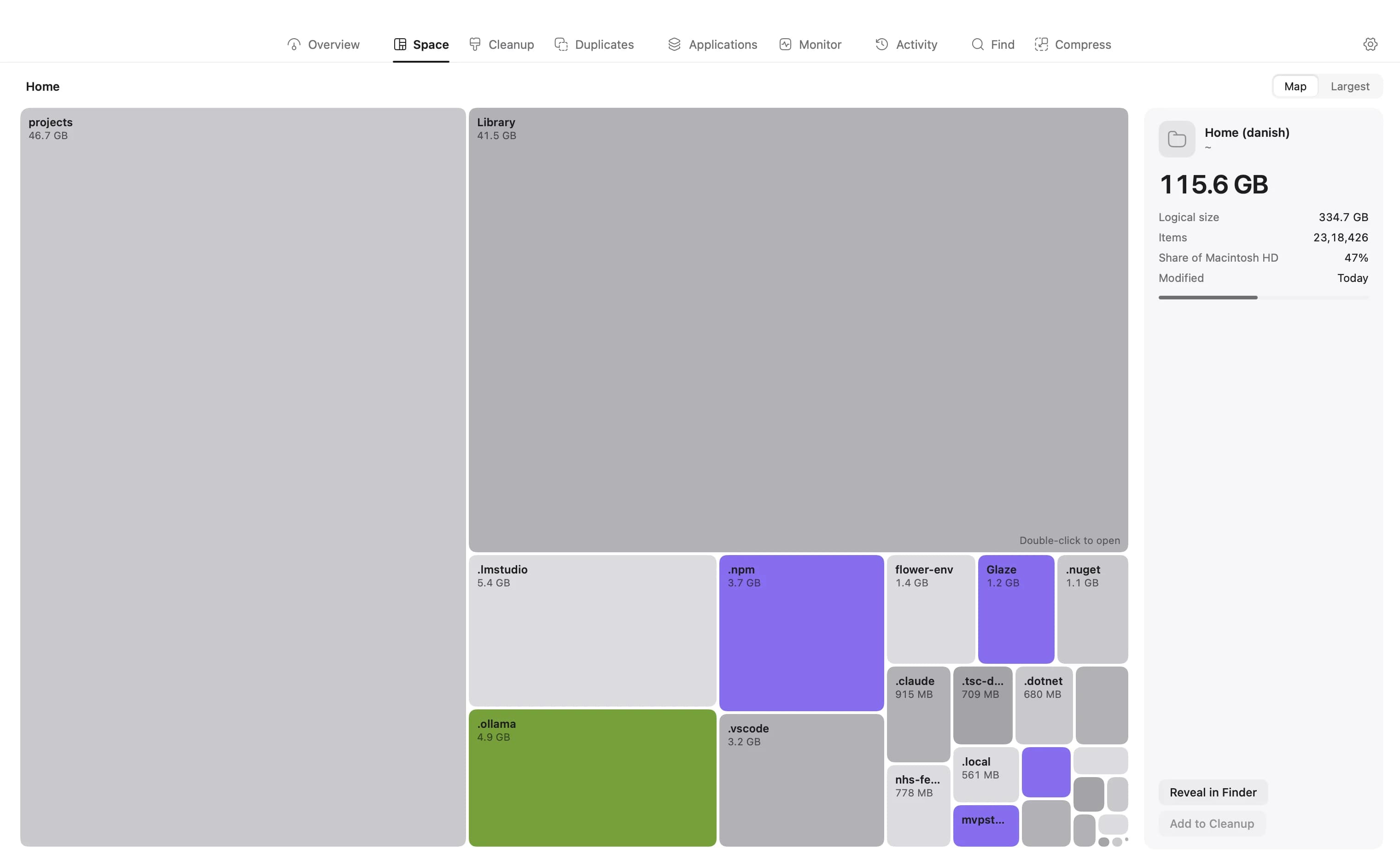
Every category above is just a folder on your drive. macOS will not open System Data, but nothing stops you from looking at the drive itself, and then the caches, the snapshots, the simulator runtimes and the derived data all appear at their real size with a path you can act on.
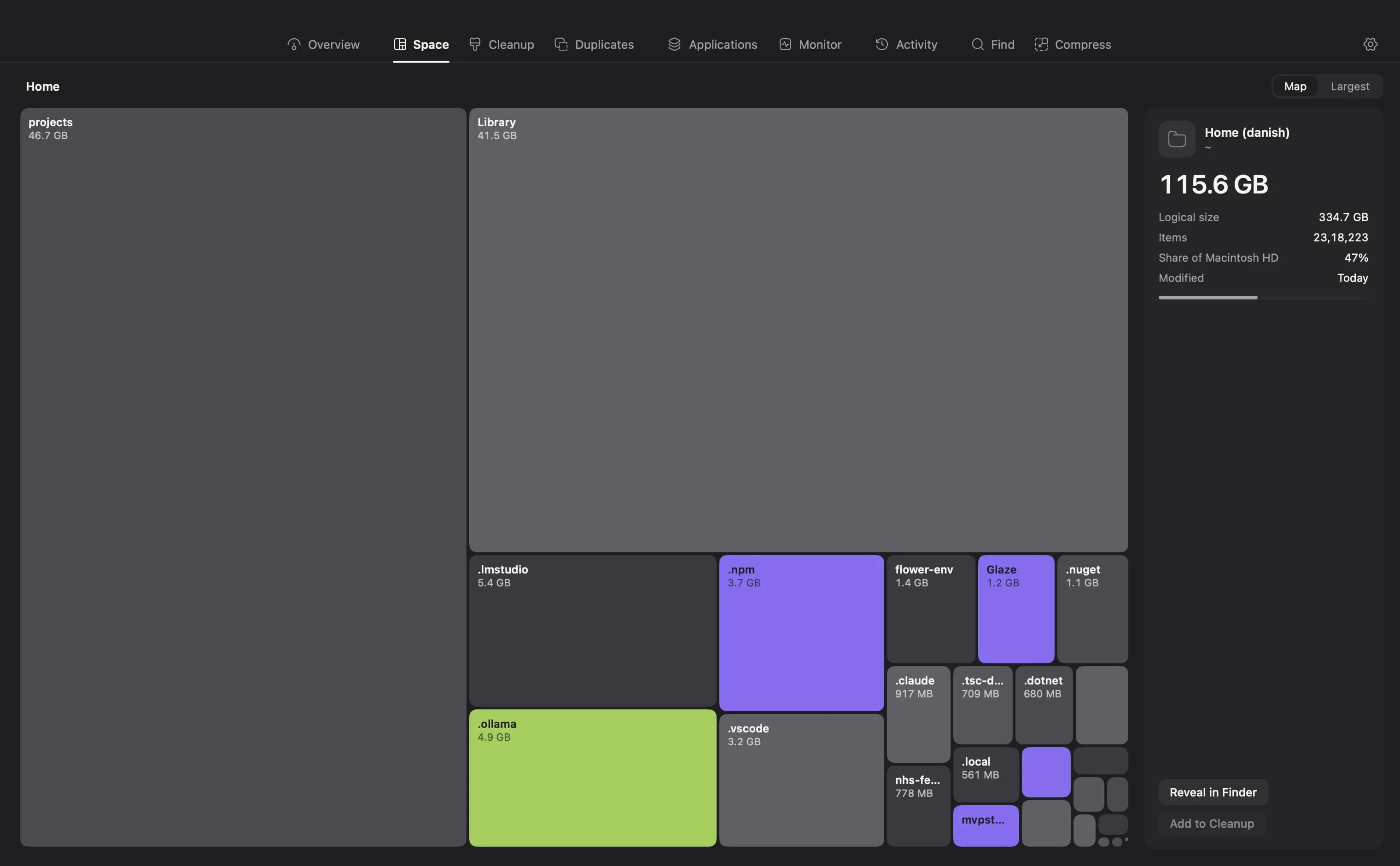
DiskBuddy maps a 118 GB home folder of roughly two million files in about ten seconds and draws the result eight ways, so the thing making System Data large is simply the biggest shape on screen.
If you want the wider picture first, the guide to checking storage and disk space on a Mac covers the four built-in ways and what each one measures.
Stop guessing what System Data is
DiskBuddy scans your drive in seconds and shows every byte on it, so the category macOS will not open stops being a mystery.
$9 once, no subscription. One key for Mac and Windows, and the download arrives the moment the payment clears.