
First, look at the whole drive
Start with the summary macOS already keeps.
- 1Open the Apple menu → System Settings → General → Storage.
- 2Hover the coloured bar to see each category’s size, then scroll to the list below it.
- 3Click the ⓘ button beside Documents. The Large Files, Downloads and File Browser tabs are the most useful part of the whole screen.
If the biggest slice is Applications, Photos or Documents, you now know where to look. If it is System Data, or if the categories do not add up to anything you recognise, the space is in hidden folders, and the Storage screen will not open those. How to check storage on a Mac covers the other built-in ways to measure it.
The usual suspects, and where they live
On most Macs, the same ten things account for most of the space nobody can explain. Each path starts with ~, your home folder. In Finder, press Command-Shift-G and paste the path to go there.
- iPhone and iPad backups. Often 10 to 60 GB each, and every device you have ever synced keeps its own.
~/Library/Application Support/MobileSync/Backup - Messages attachments. Every photo and video anyone has sent you, for years.
~/Library/Messages/Attachments - The Photos library. One file in
~/Pictures, often the single largest thing on the Mac. Optimise Mac Storage in Photos settings keeps full-size originals in iCloud instead. - Docker. One disk image that grows and never shrinks on its own, commonly 20 to 60 GB.
~/Library/Containers/com.docker.docker - Xcode. The app itself, plus DerivedData, simulators and device support files that can pass 50 GB. See how to remove Xcode and its data.
- node_modules and build output in old projects, a gigabyte or more each.
- App caches. Browsers, Slack, Spotify, Teams and Adobe apps cache heavily.
~/Library/Cachesand~/Library/Application Support - Mail downloads. Every attachment you have opened.
~/Library/Containers/com.apple.mail/Data/Library/Mail Downloads - Downloads. Installers and disk images you ran once and never deleted.
- Local AI models. Tools like Ollama and LM Studio keep every model you have tried, at 4 to 40 GB each.
~/.ollama/models
When the space vanished recently
If you had plenty of room last month and do not now, the cause is usually one of three things:
- Local Time Machine snapshots, kept on your own disk between backups. Run
tmutil listlocalsnapshots /to see them. macOS is meant to free them when space runs low, and does not always do it quickly. - A new phone backup, or a large Messages thread of videos.
- A macOS update that downloaded and has not yet cleaned up after itself. A restart usually clears it.
A before-and-after comparison is the quickest way to know for sure. DiskBuddy keeps snapshots of past scans, so you can compare last month’s with today’s and see exactly which folders grew.
Getting it back safely
You could check each of those ten places by hand. Or scan the drive once and let the heavy ones rise to the top.
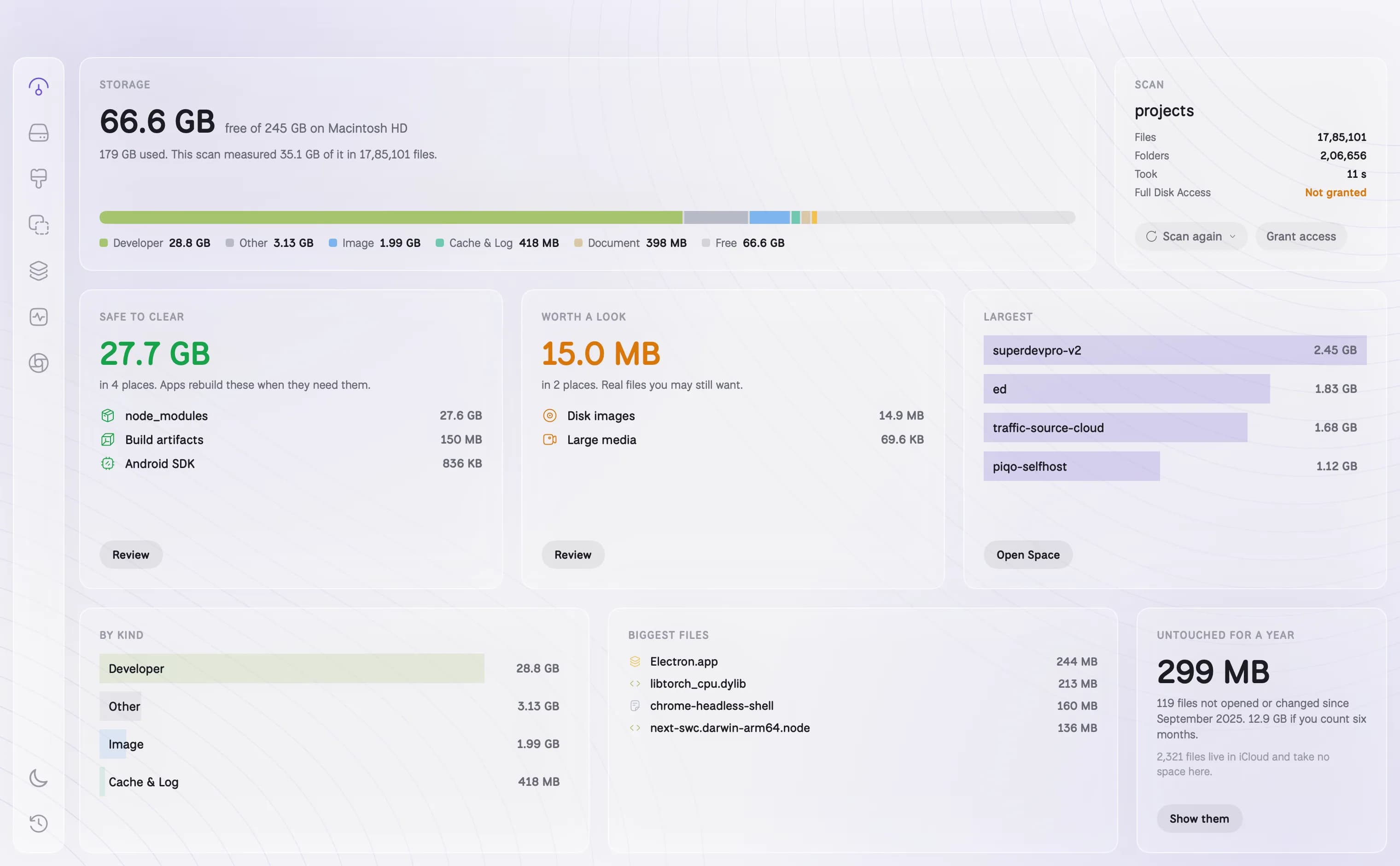
DiskBuddy scans a full Mac in about twenty seconds, Library and dot folders included, and splits what it finds in two. Safe to clear is things apps rebuild on their own: caches, build output, node_modules, simulators. Worth a look is real files you might still want, like old downloads and disk images, listed so you decide.
Find it in one scan instead of ten folders
DiskBuddy scans your whole Mac in seconds, hidden folders included, and shows what is taking the space and what is safe to clear.
One payment, no subscription. Your key and the download arrive the moment the payment clears.
Keep reading
- How to check storage on a MacFour built-in ways, and what each one hides
- How to check folder size on a MacFinder hides them until you ask
- How to check disk space in Terminaldf, du and diskutil, explained
- How to uninstall apps on a MacWhy the Trash leaves most of the app behind
- How to uninstall Xcode and its dataThe app is the small part
- What a Mac disk space analyzer doesSeeing a drive as a map instead of a list
- Sunburst storage charts, and how to read oneRings are depth, width is space
- A Disk Xray alternative for your MacAn honest comparison, gaps included
- What System Data is, and how to clear itThe category macOS will not open
- Finding what fills your drive on WindowsWhere Storage settings stops short