
One folder: Get Info
For a single folder this is the quickest way, and it works on any version of macOS.
- 1Click the folder once in Finder to select it.
- 2Press Command-I, or choose File → Get Info.
- 3Read the Size line. On a big folder it counts up for a few seconds before it settles.
Select several folders and press Command-Option-I instead. That opens the Inspector, one window that shows the combined size of everything selected and updates as you click something else, so you can check a dozen folders without a dozen windows.
Every folder in a window: list view
In list view Finder shows two dashes in the Size column for every folder. It is not broken. It skips the count because adding up a folder of a hundred thousand files is slow. You can turn it on.
- 1Open the folder whose contents you want to compare, and switch to list view with Command-2.
- 2Press Command-J to open View Options.
- 3Tick Calculate all sizes. To make it the default everywhere, press Use as Defaults.
- 4Click the Size column header to sort, largest first.
The size of a single file
Files are easier, because Finder always knows their size.
- List view shows it in the Size column with no extra setting.
- Get Info (Command-I) shows the exact size in bytes and the space it takes on disk.
- Icon view can print it under every icon: press Command-J and tick Show item info.
- The preview pane (Command-Shift-P) shows the size of whatever you select, in any view.
To find the largest files on the whole Mac rather than in one folder, the Storage screen in System Settings has a Documents section with a Large Files list. It only covers your own documents, not apps, caches or anything in Library, but it is a start.
Folder sizes in Terminal
Terminal is faster than Finder for this, and it will go as deep as you like. Open it from Applications → Utilities.
The total size of one folder:
du -sh ~/DownloadsEverything inside a folder, sorted smallest to largest:
cd ~/Library && du -sh * 2>/dev/null | sort -hThe size of a single file, in bytes:
ls -lh ~/Downloads/some-file.dmgIf a folder answers with Operation not permitted, Terminal needs Full Disk Access: System Settings → Privacy & Security → Full Disk Access, then switch Terminal on. There is more on this in the guide to checking disk space in Terminal.
Why a folder has two sizes
Get Info says something like 1,302,511,904 bytes (1.69 GB on disk). Both are true.
- The first number is the logical size: what the files would add up to if you copied them somewhere else.
- “On disk” is the space the drive actually gives them. It is usually larger, because every file takes whole blocks and a folder of tiny files wastes the end of each one. It can also be smaller, because APFS compresses some files and lets copied files share their blocks.
When you are trying to free space, the on-disk figure is the one that matters: it is what you get back when the folder is gone.
Every folder, ranked, at once
Checking folders one at a time works when you already know where to look. When you do not, you want every folder on the drive sized in one pass and ranked, so the heavy one is simply at the top.
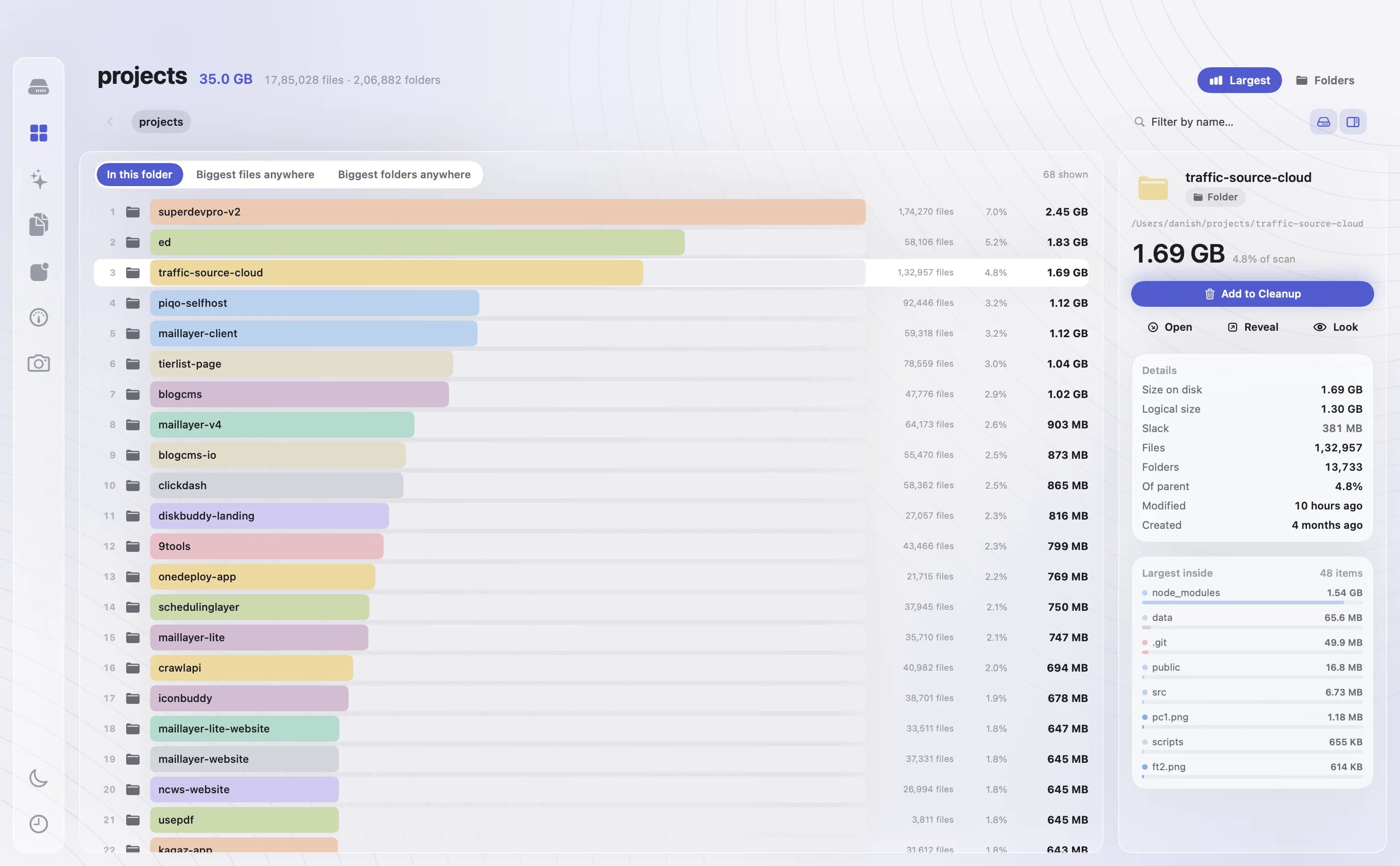
DiskBuddy scans a home folder in a few seconds and lists every folder with its size, file count and share of the total. It can rank what is in one folder, or the biggest files and folders anywhere on the drive. Selecting one shows both of its sizes and the largest things inside it, so you never have to open it to find out why. Hidden folders like Library are counted too, which is where Finder is usually least helpful.
Every folder's size, without opening a single one
DiskBuddy scans your whole drive in seconds and ranks every folder and file by the space it takes, hidden ones included.
One payment, no subscription. Your key and the download arrive the moment the payment clears.
Keep reading
- How to check storage on a MacFour built-in ways, and what each one hides
- What is taking up space on your MacTen usual suspects, and where each one lives
- How to check disk space in Terminaldf, du and diskutil, explained
- How to uninstall apps on a MacWhy the Trash leaves most of the app behind
- How to uninstall Xcode and its dataThe app is the small part
- What a Mac disk space analyzer doesSeeing a drive as a map instead of a list
- Sunburst storage charts, and how to read oneRings are depth, width is space
- A Disk Xray alternative for your MacAn honest comparison, gaps included
- What System Data is, and how to clear itThe category macOS will not open
- Finding what fills your drive on WindowsWhere Storage settings stops short