 DiskBuddy
What a disk space analyzer does
It does one thing well: walk every file on a drive, add up what each folder contains, and show you the result in a form where size is something you can see rather than something you have to read.
That gives you three answers macOS will not:
- Which folder is using the most space, without opening any of them.
- What is inside a category like System Data, which the Storage bar keeps closed.
- Where a big file is sitting, when you know it exists but not where it went.
A scan reads names and sizes only. It changes nothing on the drive, and on Apple silicon a 118 GB home folder holding around two million files takes DiskBuddy about ten seconds to map.
Why Finder is not one
Finder can tell you the size of a folder, but only if you ask it for that folder specifically, and it recalculates from scratch each time. Nothing sorts by size across the whole drive, nothing shows you two folders side by side at the same scale, and nothing looks inside the Library folders where most of the surprises are.
The Storage screen in System Settings has the opposite problem. It covers the whole drive but stops at six categories, and the largest of them is usually System Data, which it will not break down at all. You end up knowing 90 GB is missing and nothing about where.
Eight ways to read the same scan
People find a big folder in different ways. Some spot it by area, some by ranking, some by date. DiskBuddy scans once and renders that single scan eight ways, and switching between them is instant because there is nothing to re-scan.
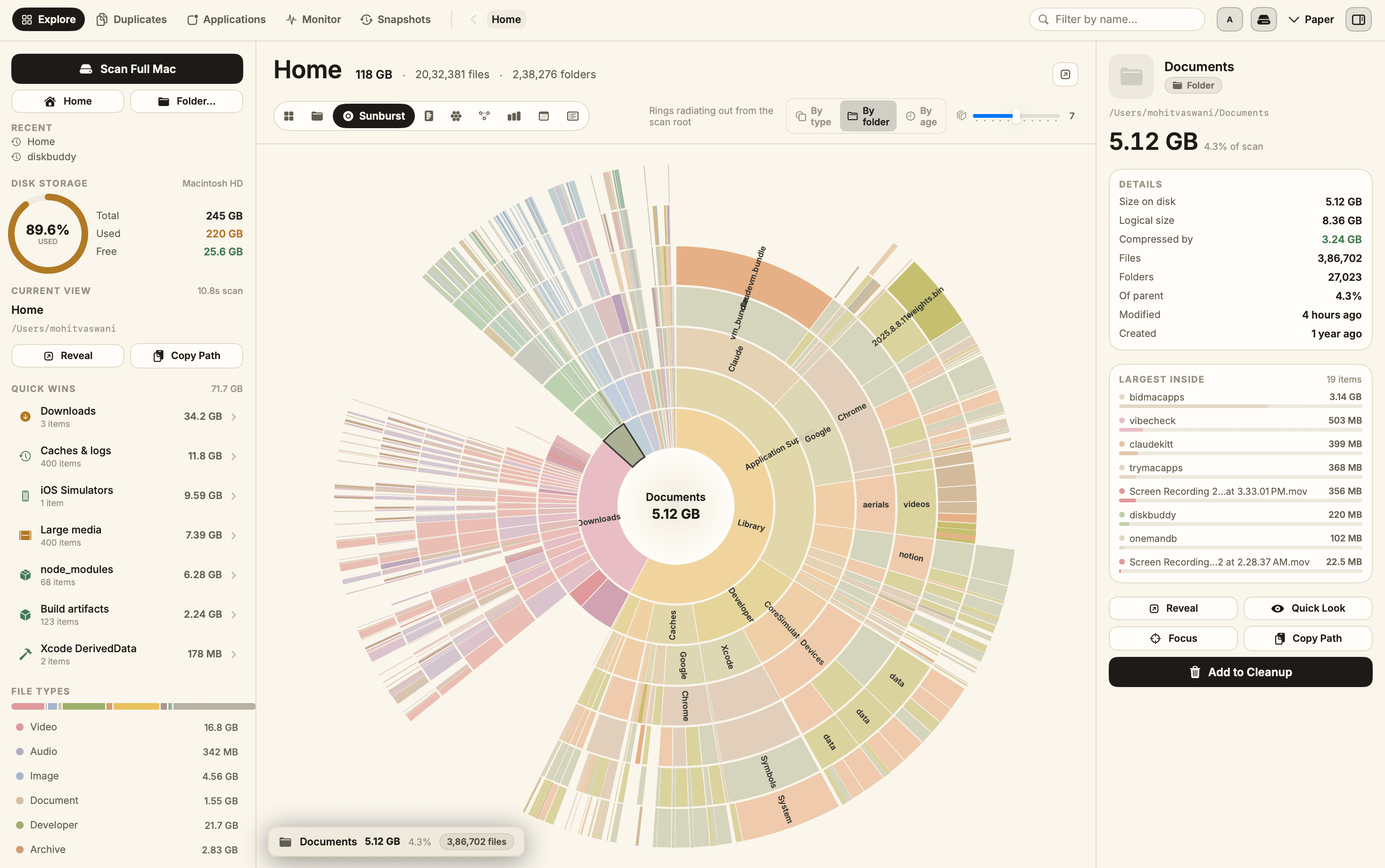
The rest cover the other ways of looking:
- Folders — browse folder by folder, sized as you go, like Finder with the numbers filled in.
- Flame — depth top to bottom, size left to right, for following one deep path down.
- Bubbles — nested circles, one per folder.
- Mind Map — branches from the root, weighted by size.
- Top Sizes — the largest items outright, ranked, when you want a list rather than a picture.
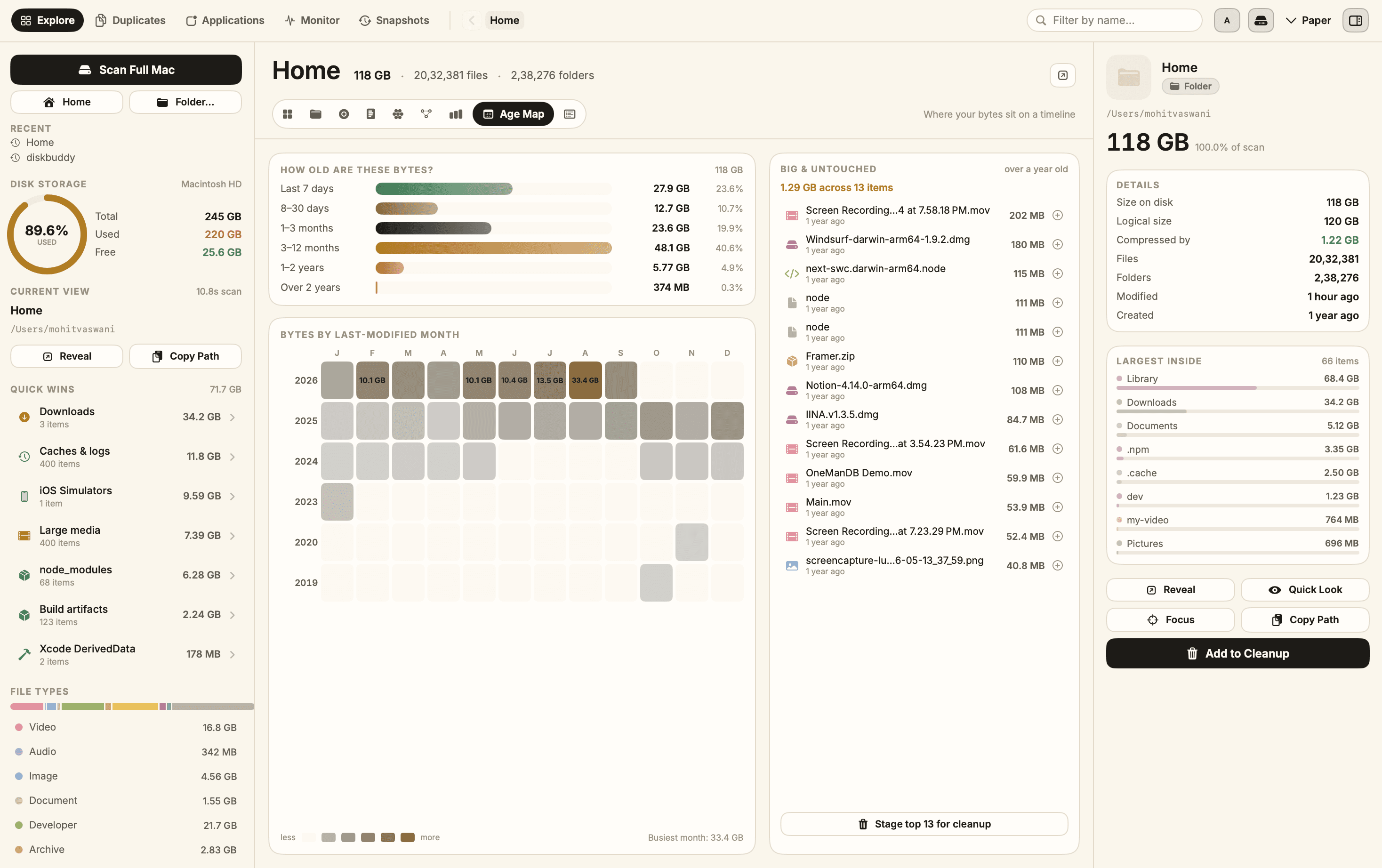
- Age Map — your bytes laid out by last-modified date, which finds the big files you stopped using years ago.
How to actually read a treemap
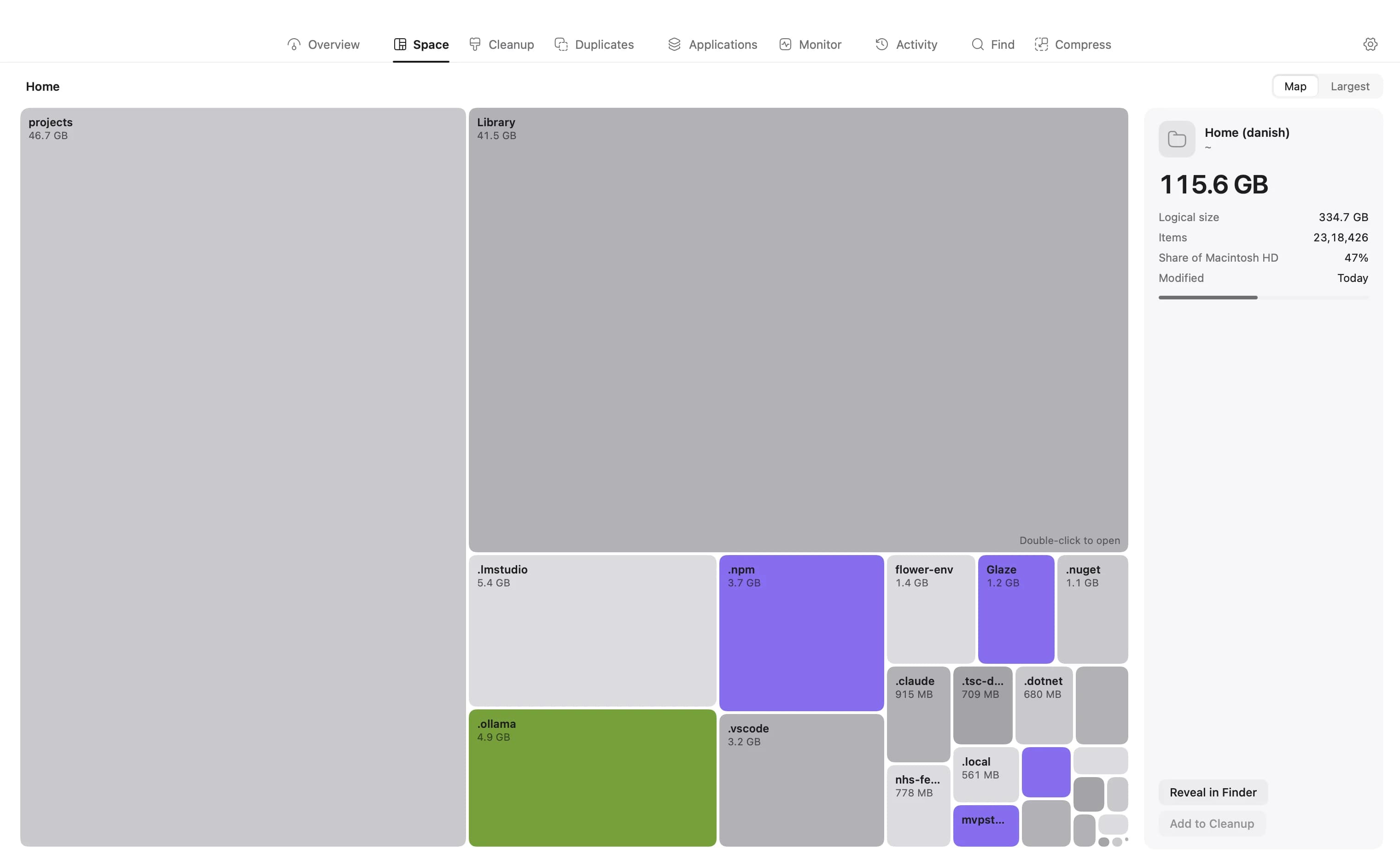
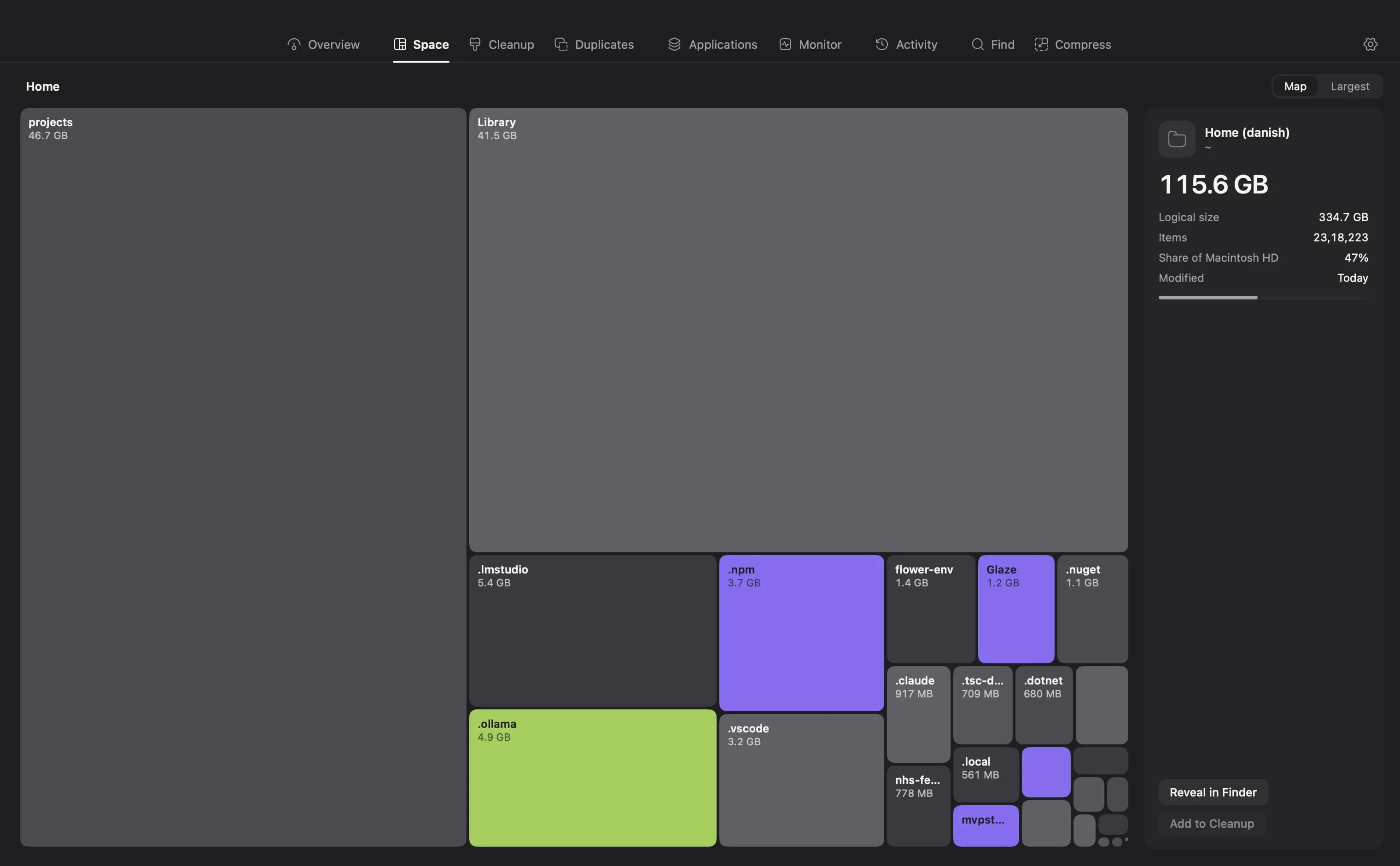
A treemap is the view most people meet first and the one most worth learning. Every rectangle is a file or folder, and its area is the space it takes, so the picture is to scale.
- One rectangle filling a quarter of the screen is one file or folder using a quarter of the drive. Start there.
- A block made of hundreds of slivers is a folder full of small files, like node_modules or a cache. Individually harmless, collectively large.
- Nesting is depth, so a block inside a block is a folder inside a folder. Click to re-root the map on it and keep going.
- Empty-looking areas are not empty, they are lots of tiny files. Switch to Top Sizes if you want them ranked instead.
The inspector follows whatever you click, wherever you clicked it, and answers the question you actually have, which is whether the thing is safe to remove: size on disk against logical size, how much APFS compression is saving, file and folder counts, when it was created and last modified, and the ten heaviest things inside it.
What a good one finds that a map cannot
Some of the biggest wins are not one big rectangle. They are patterns spread across the drive, which is why the useful tools look for them directly.
- Real duplicates. Matched byte for byte across every folder in the scan, not by filename, so copies that were renamed still get caught.
- Application leftovers. Every app with its true footprint, the bundle plus the caches, preferences and logs it scattered around your Library.
- Quick Wins. Downloads, caches and logs, iOS simulators, node_modules, build artefacts and Xcode DerivedData, totalled the moment a scan lands.
- Big and untouched. Large files you have not opened in over a year, which are the safest things to let go.
Deleting without regretting it
An analyzer that deletes on its own is a liability. The habits worth keeping, whichever tool you use:
- Keep a backup before a clear-out, always.
- Review a whole list before removing any of it, rather than deleting as you browse.
- Leave anything inside a system folder you did not put there.
- Prefer things that regenerate: caches, DerivedData, build output, simulator runtimes.
DiskBuddy stages everything you pick on a cleanup list and removes nothing until you confirm the set, and system-critical paths are excluded from staging entirely. Scanning, hashing and duplicate matching all happen on your Mac. There is no account, no sync and no analytics, and no filename or path is ever uploaded.
Map your drive in about ten seconds
Eight views of one scan, duplicate and leftover detection, and a staged cleanup that never deletes anything behind your back.
$9 once, no subscription. One key for Mac and Windows, and the download arrives the moment the payment clears.