 DiskBuddy
The Storage bar in System Settings
This is the number most people mean when they ask how to check disk space on a Mac, and it takes two clicks.
- 1Open the Apple menu and choose System Settings.
- 2Go to General, then Storage.
- 3Wait a few seconds for the bar to finish calculating, then hover a segment to read its size.
The bar divides your used space into categories such as Applications, Documents, Photos, Mail, macOS and System Data. It is a fine summary and a poor diagnosis: it tells you that Documents is 80 GB, not which document. And the biggest slice is usually the one it explains least, which is the reason most people go looking further.
Folder sizes in Finder
Finder can size a folder, but it will not do it unasked, because adding up every file inside a folder is slow.
- 1Select a folder and press Command-I for Get Info. The Size line fills in as it counts.
- 2To size several at once, switch a Finder window to list view, open View → Show View Options, and tick Calculate all sizes. Then click the Size column to sort.
- 3Press Command-Option-I instead for the Inspector, a single window that re-sizes whatever you click.
This is accurate and completely manual. On a home folder with a million files, calculating all sizes can take minutes, and you still have to walk into each folder yourself to find what is heavy. The folder size guide has every way Finder can size a folder or a file.
Exact numbers in Terminal
If you want a figure you can trust to the byte, two commands cover almost everything. Open Terminal from Applications → Utilities.
Free space on every mounted volume:
df -hThe size of each item in the folder you are in:
cd ~ && du -sh * | sort -hThe heaviest folders anywhere under your home folder, largest last:
du -h -d 3 ~ 2>/dev/null | sort -h | tail -30There are more commands, and an explanation of every line they print, in the guide to checking disk space in Terminal.
Why System Data is so large
On a Mac that has been in use for a year or two, System Data is routinely 50 GB and can pass 200 GB. It is not one thing. It is the bucket macOS drops anything it cannot categorise into:
- Caches from apps and the system, which are rebuilt if deleted but never shrink on their own
- Local Time Machine snapshots, kept on your own drive between backups
- iOS and iPadOS device backups, at several gigabytes each
- Xcode DerivedData, simulators and device support files, which alone can pass 50 GB on a developer's Mac
- Virtual machine disks, container images and downloaded language models
- Logs, crash reports and the contents of every app's Container folder
The Storage screen will not open this up. There is no drill-down, no list, no way to ask what the 90 GB consists of. That is the gap a disk space analyzer fills, and there is a fuller guide to System Data covering what is inside it and which parts are safe to clear.
Seeing the whole drive at once
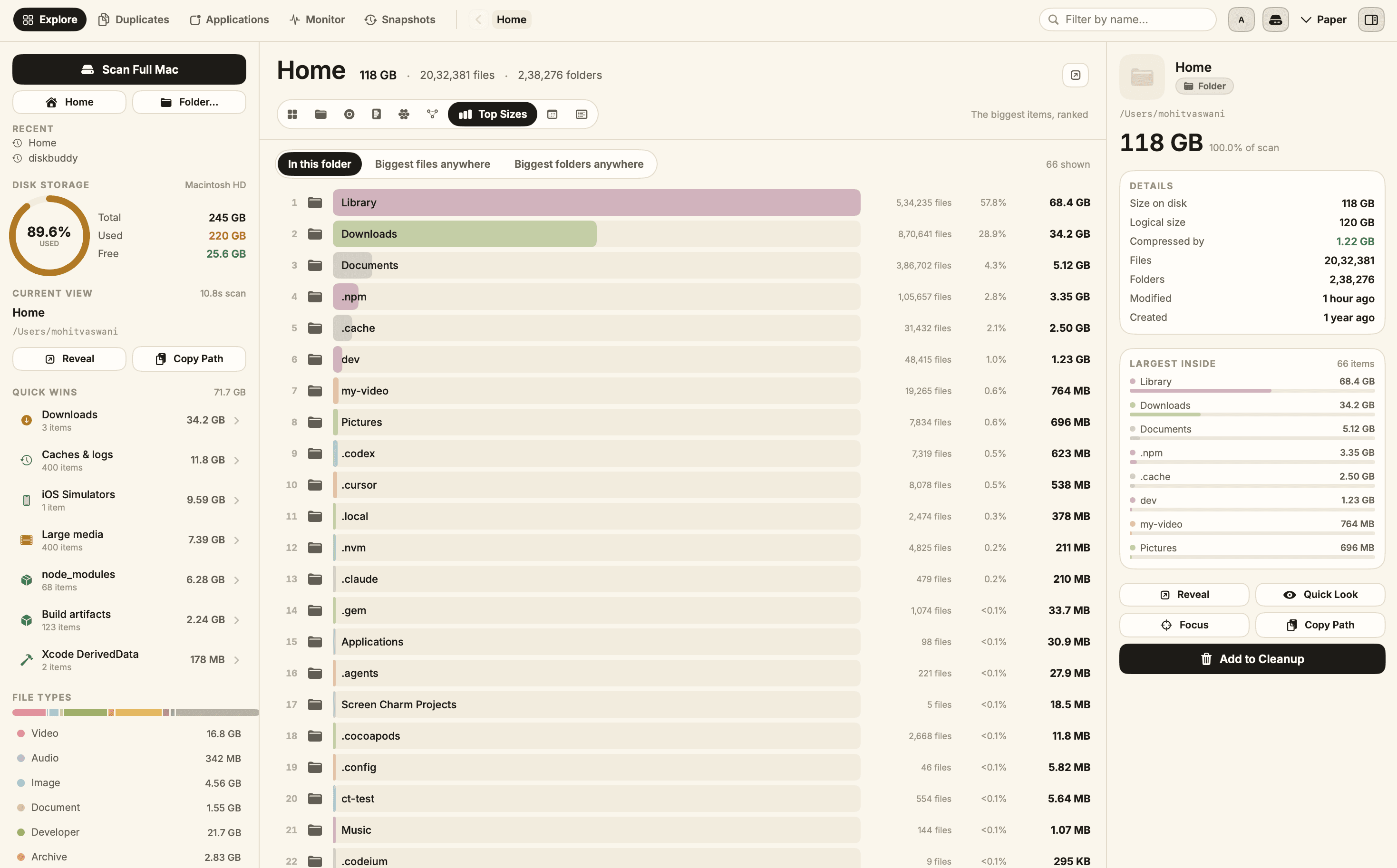
Rather than sizing folders one at a time, a disk space analyzer walks the entire drive once and draws the result, so the heavy thing is the thing that looks big. DiskBuddy maps a 118 GB home folder of roughly two million files in about ten seconds, then gives you eight ways to read it.
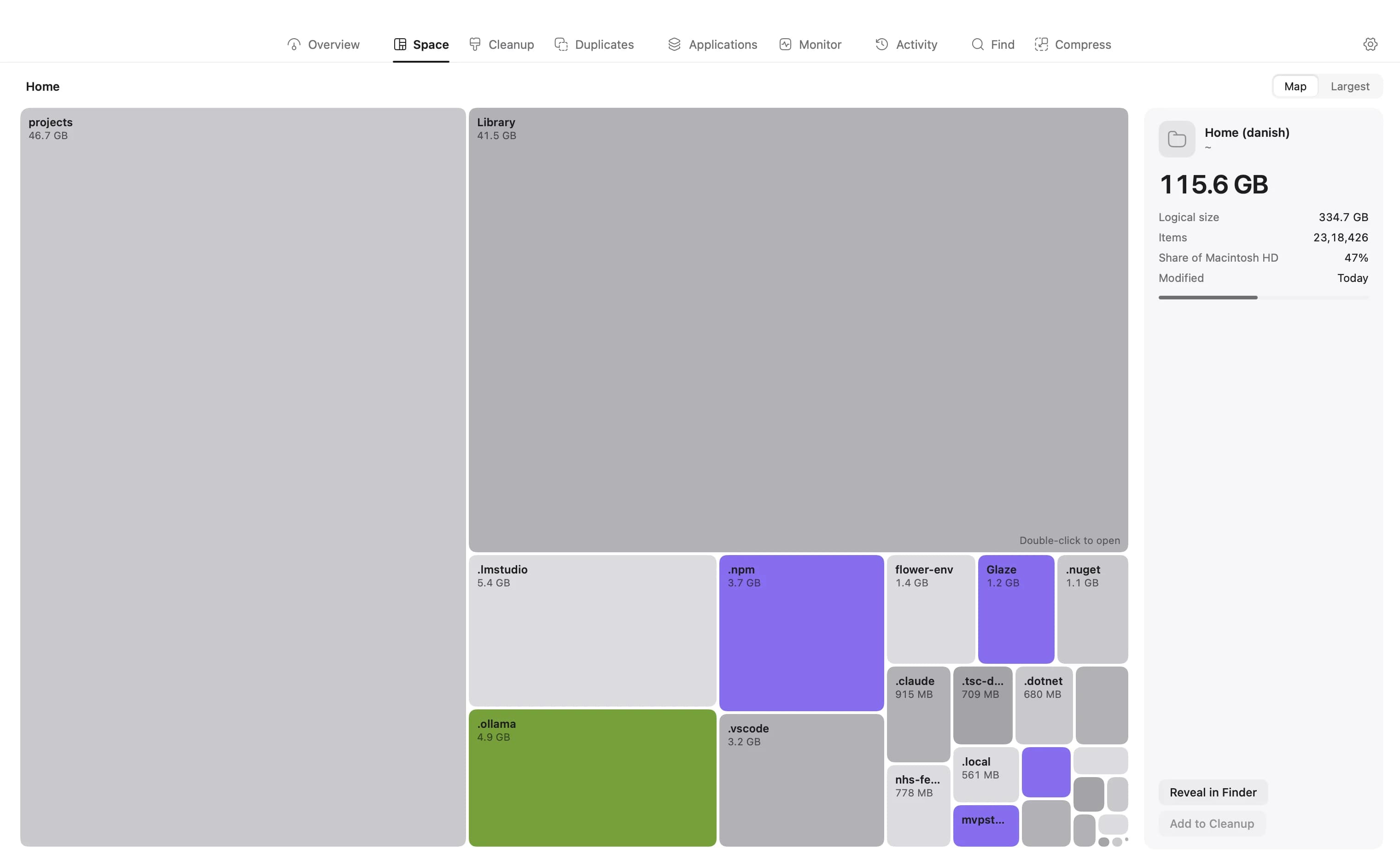
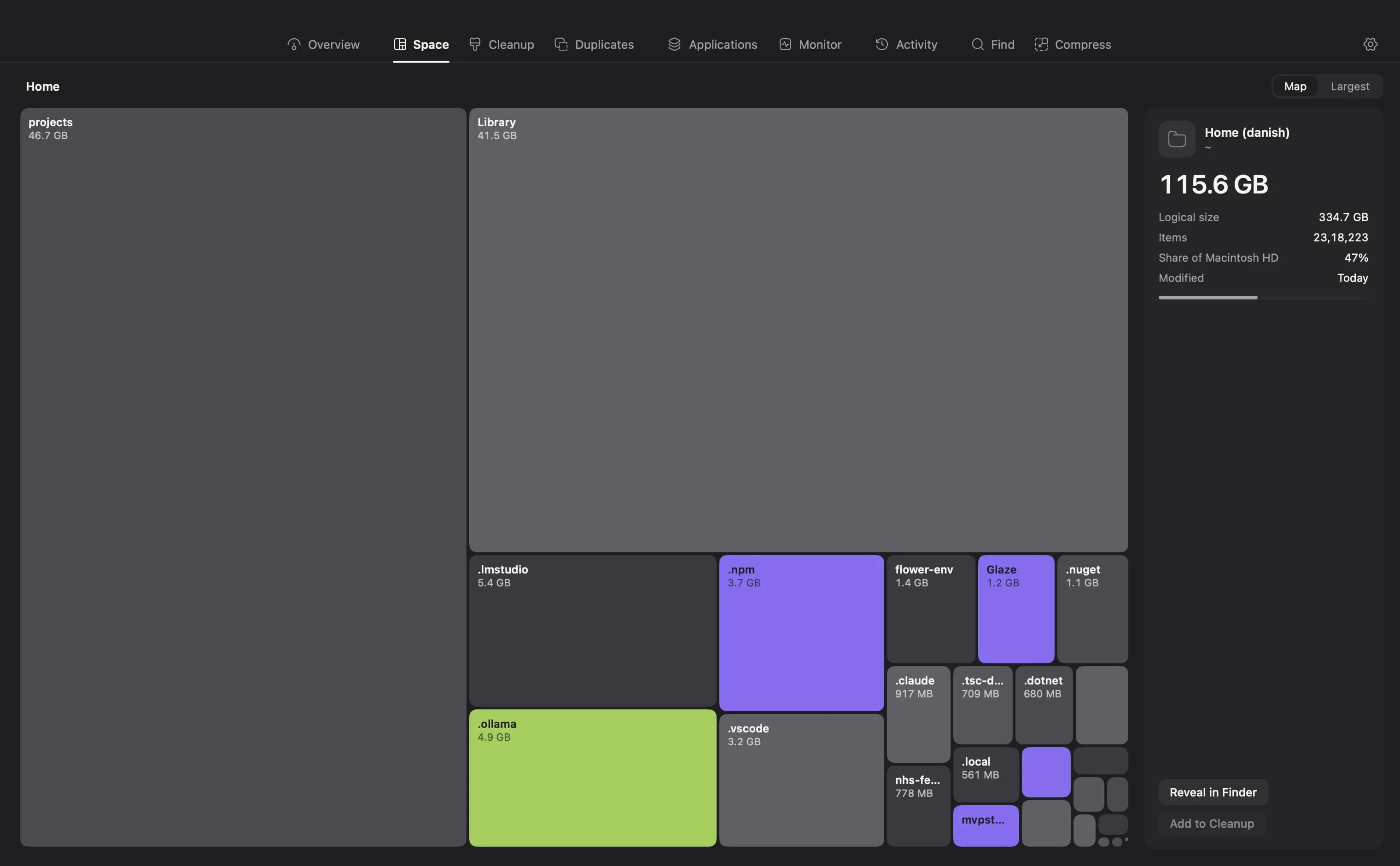
Every category the Storage bar keeps closed is just a folder, and a map shows folders. The caches, the snapshots, the simulator runtimes and the DerivedData all appear at their real size, with a path you can act on.
What to clear first
Once you can see the drive, the same handful of things is almost always at the top. In rough order of how much they return for how little you risk:
- Downloads. Installers, disk images and duplicates of things you already have. Usually the fastest win.
- Caches and logs. Safe to remove; apps rebuild what they need.
- Xcode DerivedData, simulators and archives. Tens of gigabytes on any Mac used for development, and all of it regenerates.
- node_modules and build artefacts from projects you are no longer working on.
- Old iOS device backups you have not restored from in years.
- Large files you have not opened in over a year, which are the ones you will not miss.
Stop guessing what System Data is
DiskBuddy scans your drive in seconds and shows every byte on it eight different ways, so the folder quietly holding thirty gigabytes stops being a mystery.
$9 once, no subscription. One key for Mac and Windows, and the download arrives the moment the payment clears.